
Skip to content
Pezley Portal homePezley Portal home

Built by a painting company, for painting companies

The all-in-one
app for painting
companies.

Your office and your crew in one app, with a GPS time clock that feeds payroll, profit on every job, a page where customers sign, pay, and follow along, and sales follow-ups that send themselves. And it works with the AI assistant you already use.

Works in your web browser and on your phone. Built and used every day by Pezley Painting.

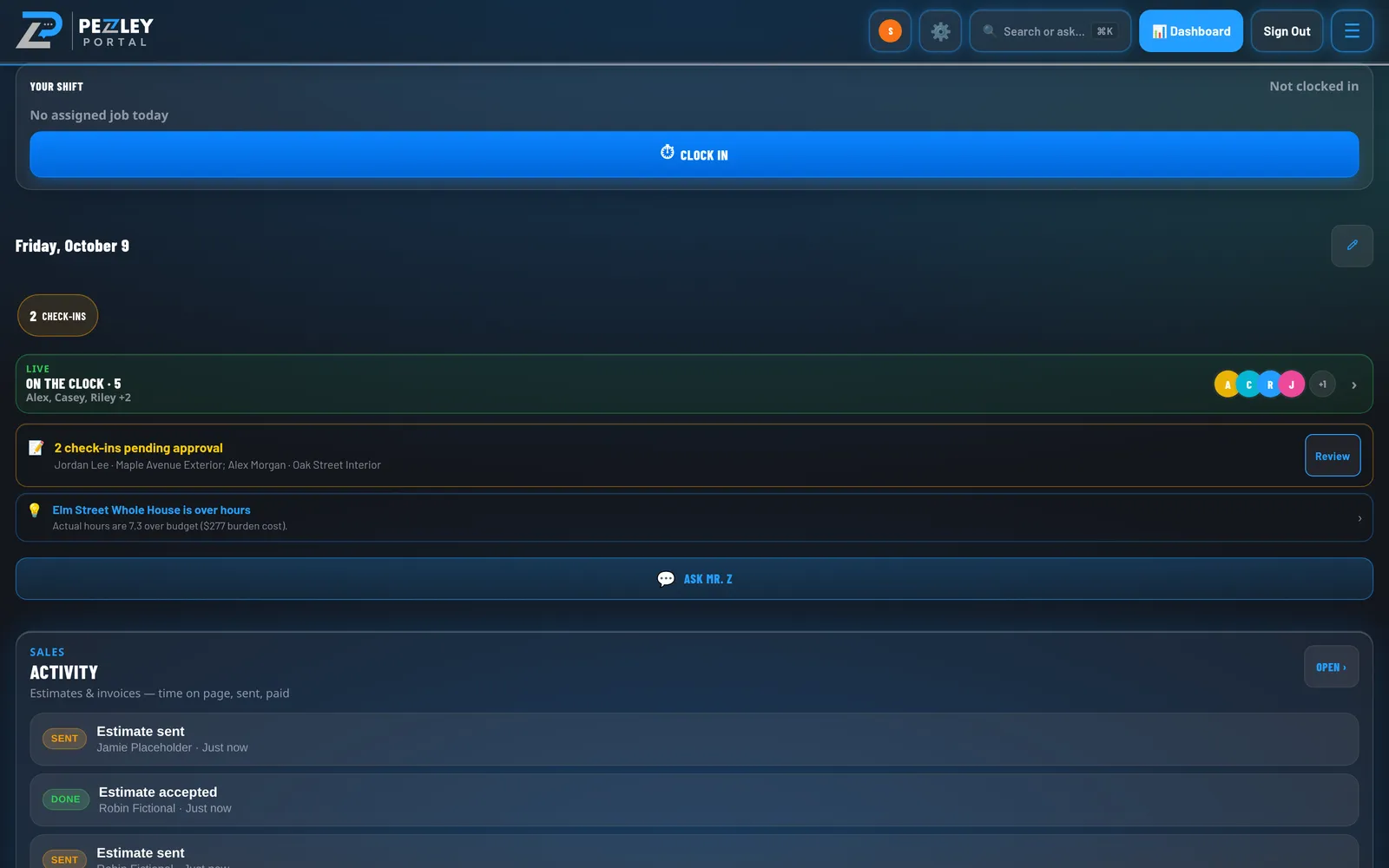
The owner's dashboard in Pezley Portal: who is on the clock, check-ins waiting for review, a job running over its hours, and recent sales activity.
A crew lead's home screen on a phone, clocked in to today's job with buttons to check in and clock out.
Real Portal screens, shown with a made-up company and example data.

Works with your AI assistant

Portal is open to AI.

Connect ChatGPT, Claude, or the AI assistant you already use. Setup is three steps, and the instructions are public.

What your assistant can do in Portal

  • Pull up a job: the customer, address, scope, and notes.
  • Read and update estimates and draft proposals, one change at a time.
  • Check the schedule and the hours your crews have clocked.
  • Add a new lead or book an estimate visit.

If your assistant is also connected to your calendar or a meeting recorder like Plaud or Granola, it uses them right alongside Portal. It can even find the recording of your site visit and link it to the job.

How we use it

After a site visit, our owner opens ChatGPT and talks the estimate through. ChatGPT finds the job in Portal, links the visit recording from his meeting recorder, and updates the draft one change at a time. He looks it over in Portal and sends it when it’s right.

The talking happens in your AI app. Portal holds the job and the proposal, and your assistant reads and updates them for you.

Example conversation · made-up names and numbers

Just left the Example Lane walkthrough for Dana Sample. Finish that estimate: add the dining room, walls and ceiling, two coats, and switch the trim to semi-gloss.

You

Found job · 31 Example LaneLinked visit recordingUpdated draft estimate

Done. I linked your 2:10 PM recording to the job and updated the draft: dining room added (walls and ceiling, two coats) and all trim set to semi-gloss. New total: $6,240. Want to see the preview before it goes to Dana?

Your AI assistant

Connect your AI in three steps

  1. Create a key in Portal

    The owner opens Settings → Portal Ops keys, names a key, and turns on only what the assistant needs, like proposals or the schedule.

  2. Connect your assistant

    In ChatGPT, add the Pezley Portal connector and paste your key to approve it. Using Claude or another assistant? Give it the key and point it to our API guide.

  3. Start asking

    “What’s on the schedule tomorrow?” “How many hours are on Oak Street?” “Add a dining room to the Example Lane estimate.”

You stay in control

  • Each key only does what you turned on. Revoke it anytime and the connection stops right away.
  • ChatGPT shows you a preview, with who it’s going to, and waits for your OK before a proposal is emailed to a customer.
  • Draft updates change only what you asked for, and your assistant can check the new total before it saves.
  • Every assistant action is listed in Settings → AI activity, and draft proposal saves can be undone from there.

Run the whole job.
From the office to the driveway.

Every tool shares the same jobs, people, and customers, so nothing gets typed twice. The screens below are the real app with example data.

01 · Office and crew

The office and the crew, in one app

The office plans the work and the crew sees it on their phones. Owners, crew leads, and painters each sign in to the same jobs, schedule, and chat, and each sees what their role needs.

  • A shared crew schedule, with every job laid out across the next two weeks.
  • Each job has its own team chat, address, scope, and paint notes.
  • Money and payroll stay with the owner. Crews see the work, not the numbers.

Why it matters: fewer early-morning calls and group texts, and nobody shows up at the wrong house.
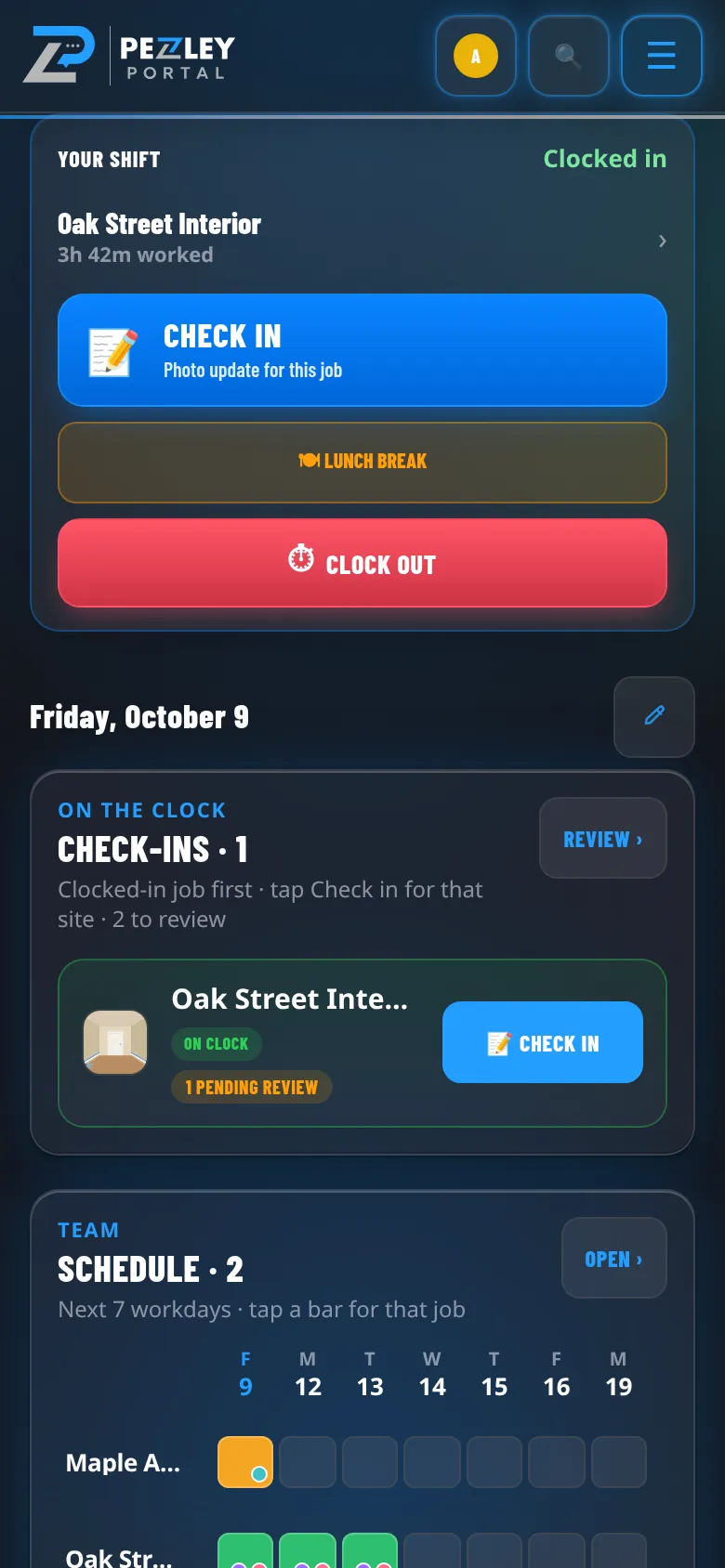
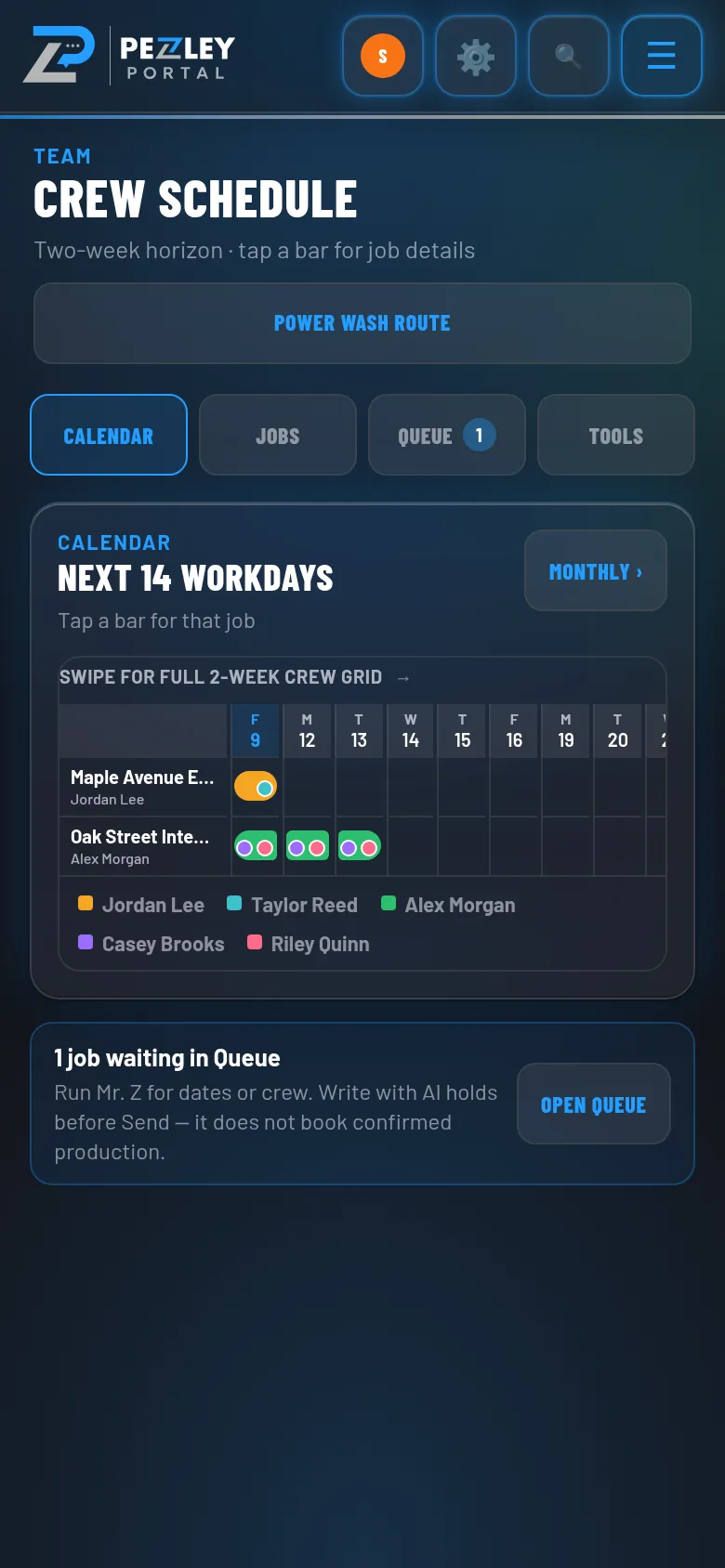
A crew lead's phone showing today's job, who is on the clock, and the job schedule.
Crew lead’s phone
The crew schedule with each job shown as a bar across the next fourteen workdays.
Crew schedule

02 · Time clock and payroll

A GPS time clock that flows into payroll

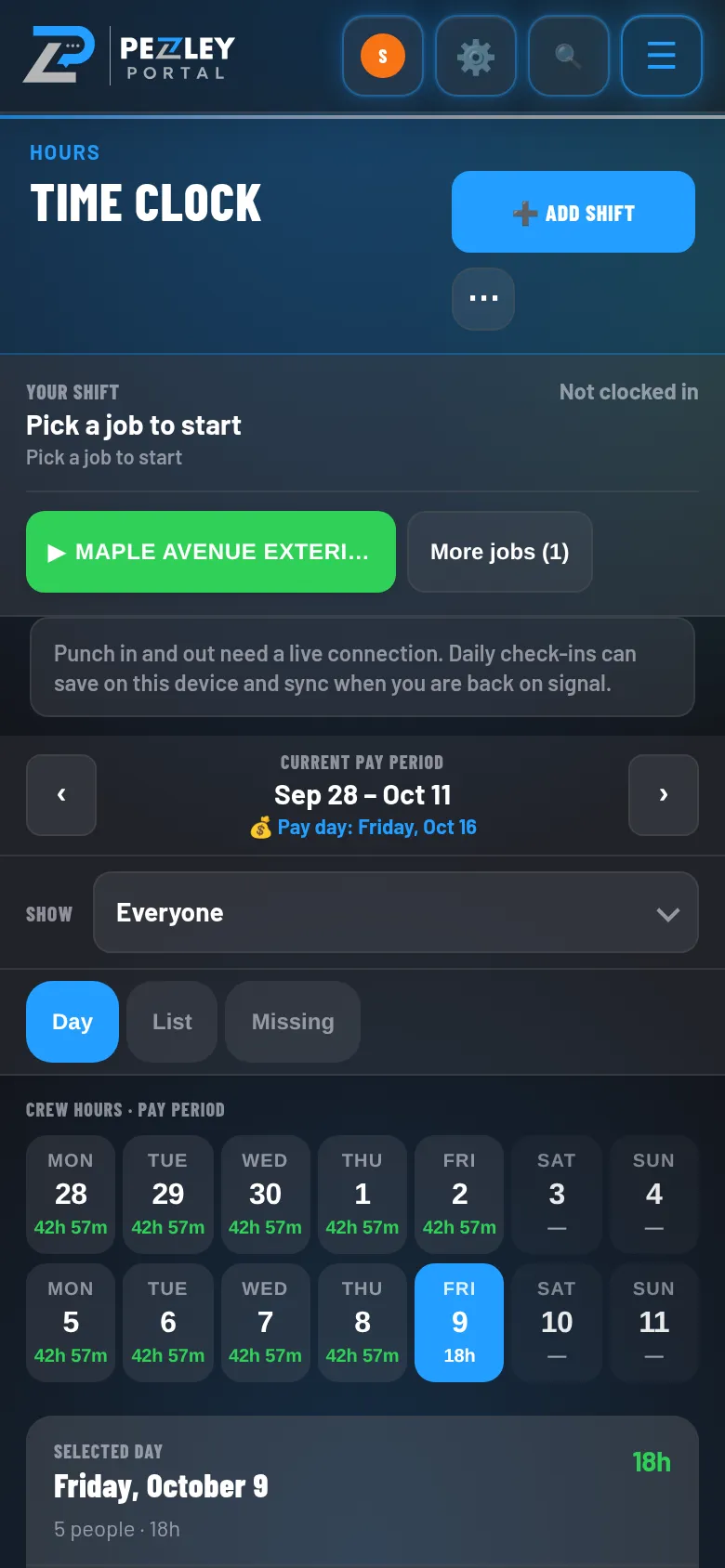
Crews clock in and out on the job from their phones. Each punch saves the GPS location and lands on the right job. On payday, the owner exports the hours as a file ready for Gusto.

  • See who’s on the clock right now, from the dashboard.
  • Hours add up by day and by person for each pay period.
  • Crew leads can fix a missed clock-in so the hours stay right.

Why it matters: no more rebuilding timesheets from texts and memory on payday.

Time Clock screen showing the current pay period with each day's crew hours.
Time clock

03 · Job costing

Know your profit on every job

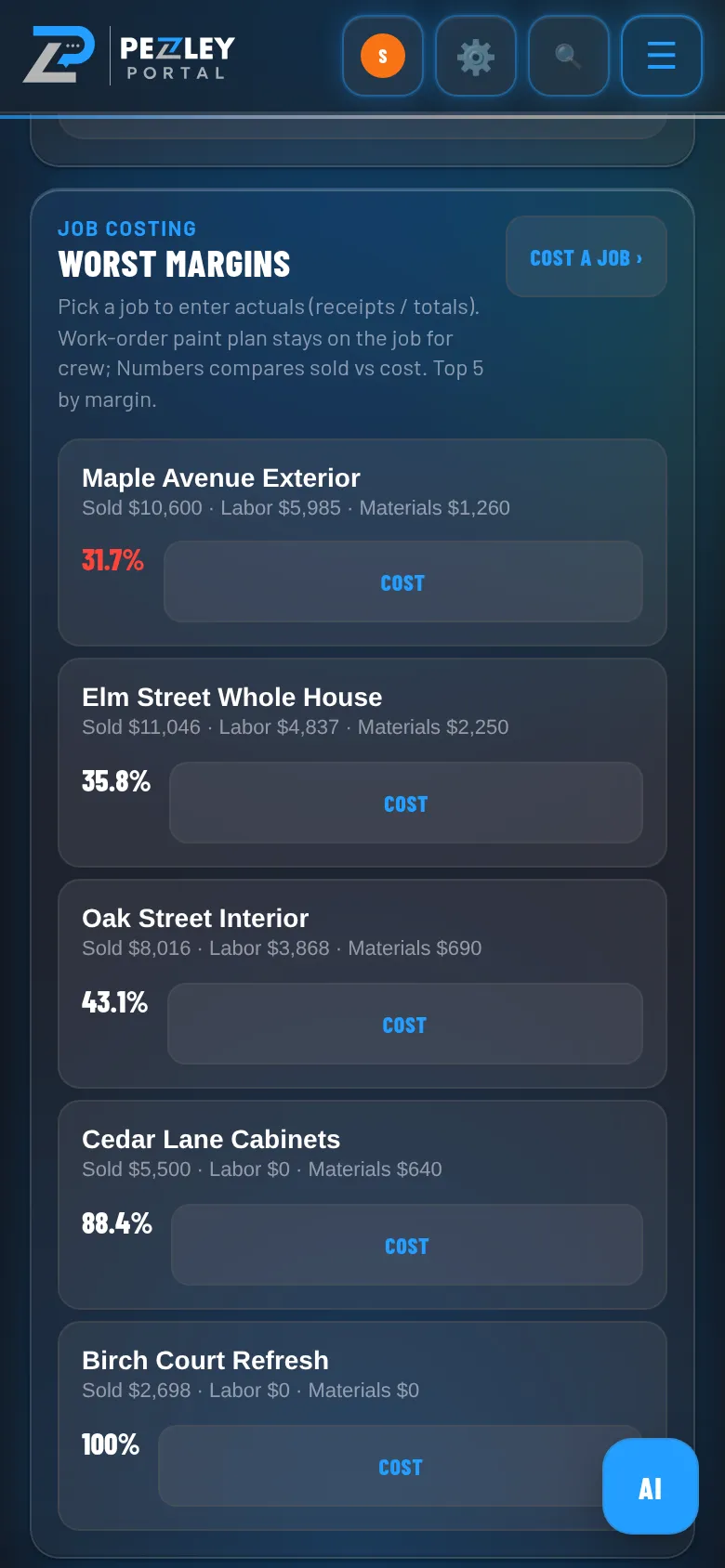
Portal compares what you sold each job for with what it cost. Crew cost comes from the hours clocked on the job times your loaded labor rate, plus the receipts and material costs you log.

  • Sold price, cost, and margin for each job, side by side.
  • Jobs under your target margin are flagged so you can see them first.
  • The dashboard warns you when a job runs over its estimated hours.

Why it matters: you find out which jobs make money, and price the next one better. Only the owner sees these numbers.

Job costing list with sold price, labor, materials, and margin for each job. One job is flagged below the target margin.
Profit per job

04 · Customer project page

A page where customers sign, pay, and follow along

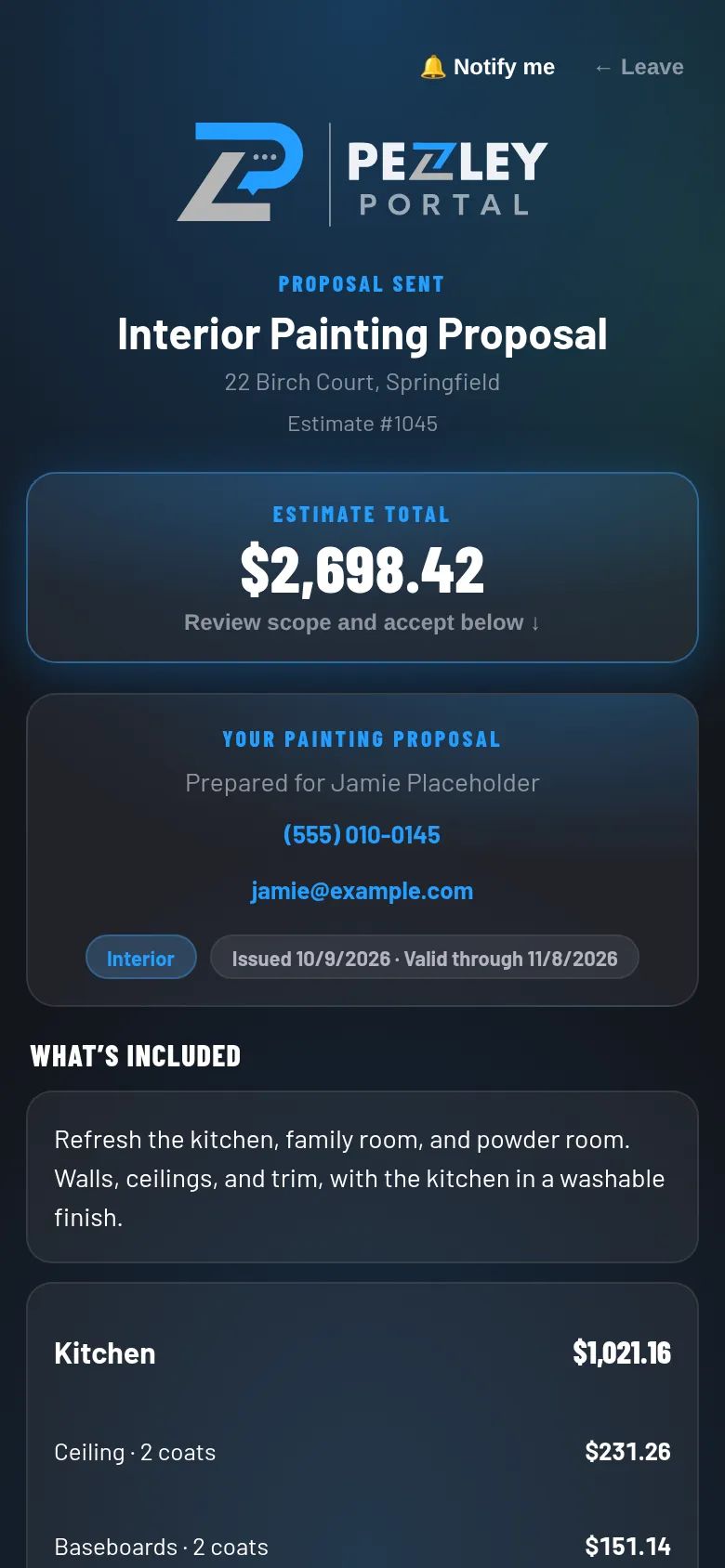
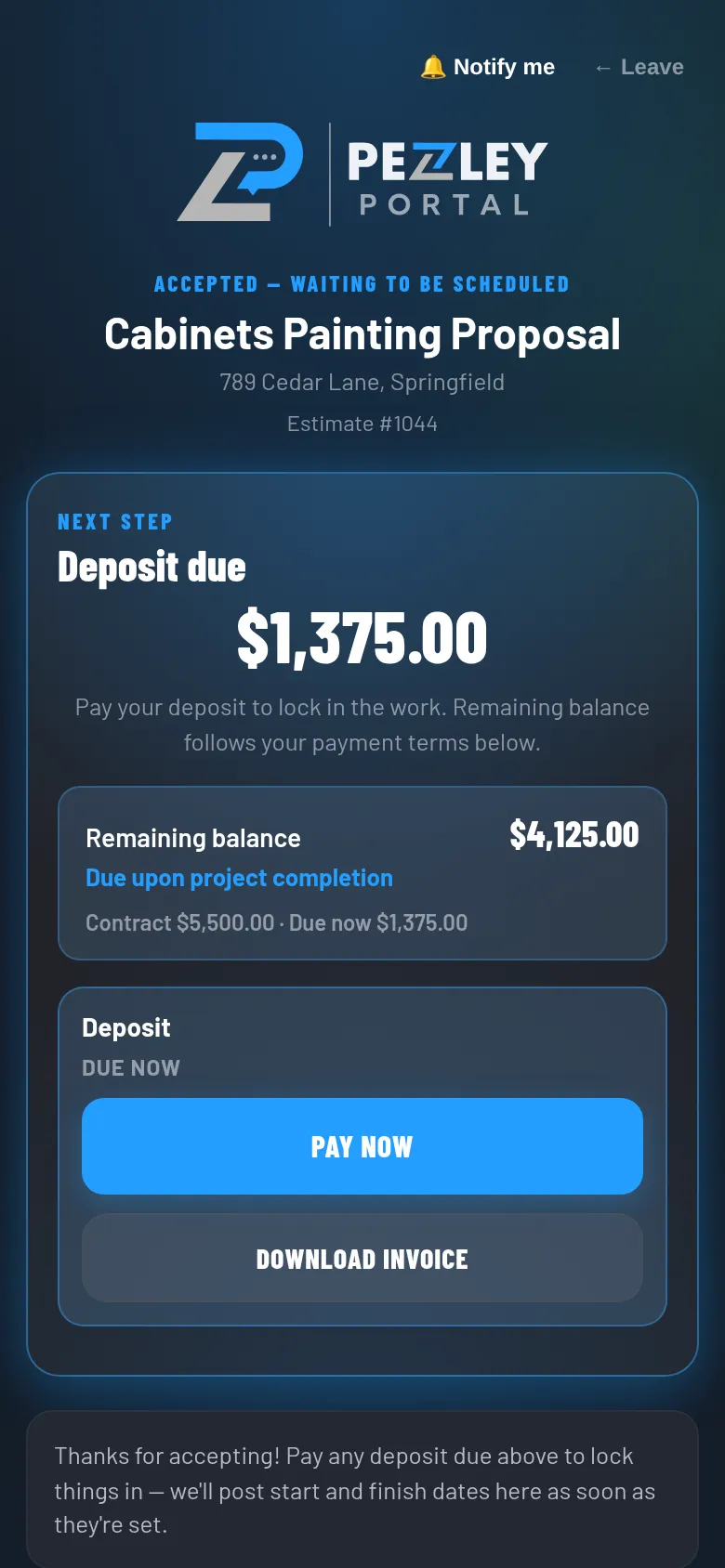
Every customer gets a private link to their own project page. No app and no login. They read the proposal and sign it, pay the deposit online, and then watch the job move along.

  • Sign the proposal right on the page by typing their name.
  • Pay online with a Pay now button, once you connect Stripe.
  • See progress, the schedule, their crew, and only the photos you’ve approved.

Why it matters: customers say yes sooner, pay faster, and stop calling to ask how it’s going.

Customer project page showing a painting proposal with its total, ready to review and accept.
Review and sign
Customer project page after signing, with the deposit due and a Pay now button.
Pay the deposit
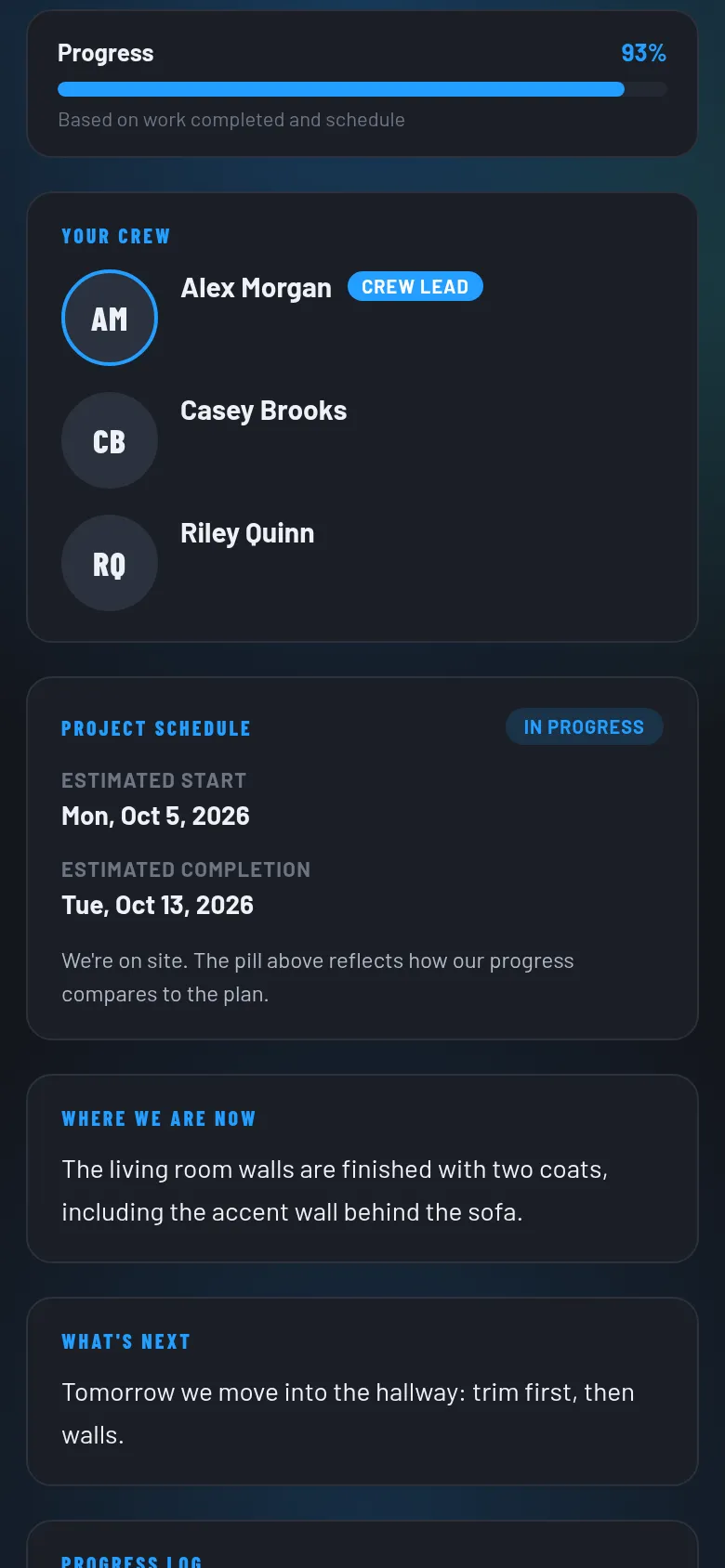
Customer project page with a progress bar, the crew, the schedule, and today's update.
Follow the progress
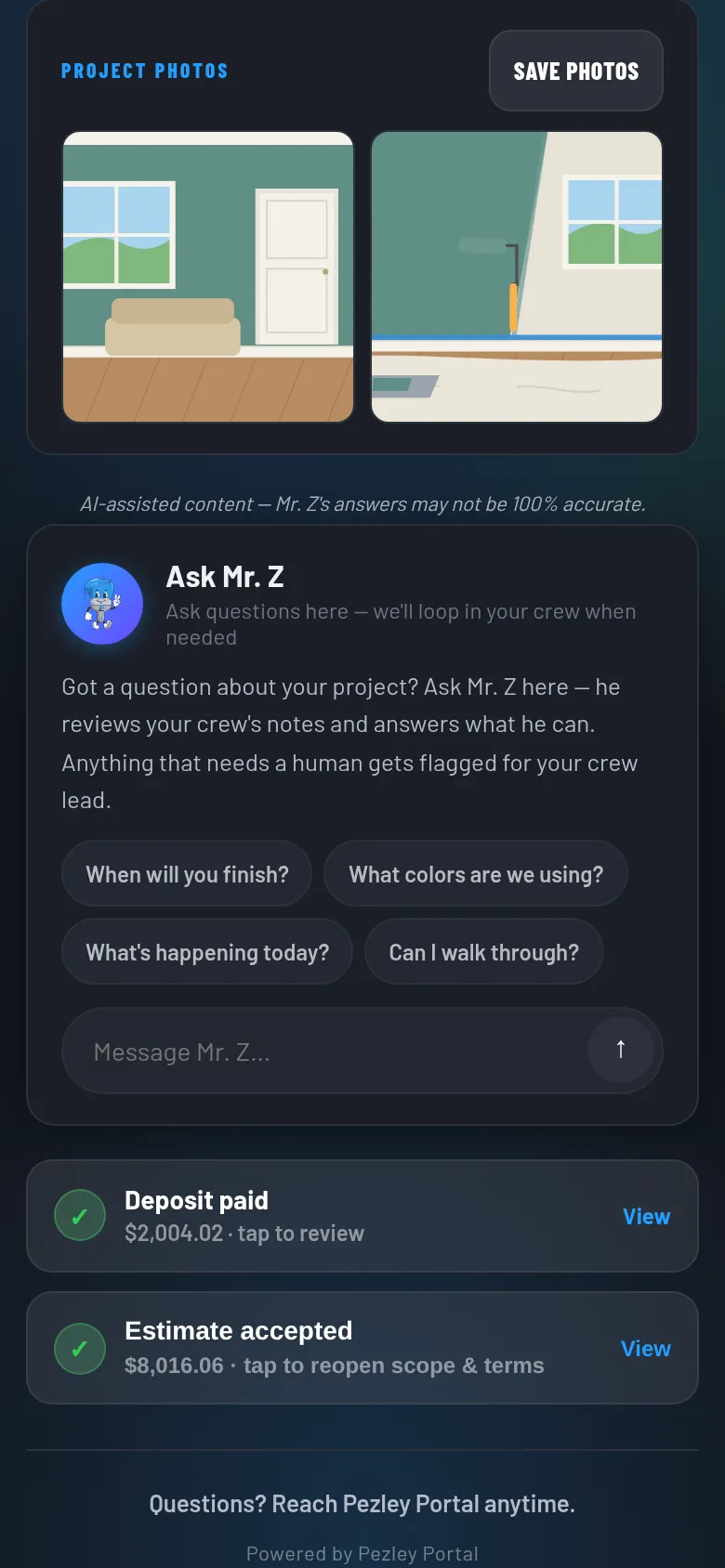
Customer project page with project photos the crew lead approved, and a box to ask Mr. Z a question.
Approved photos

05 · Sales follow-ups

Sales follow-ups that send themselves

Automatic email and text follow-ups start on their own when a lead comes in, a proposal goes out, or a job wraps up. They stop as soon as the customer replies, accepts, or declines.

  • Ready-made sequences for new leads, sent proposals, and jobs waiting to be scheduled.
  • Ask for a review or a referral when the job is done, and check in a year later.
  • Edit the wording, timing, and steps to sound like your company.

Why it matters: no lead goes cold because someone forgot to call back.

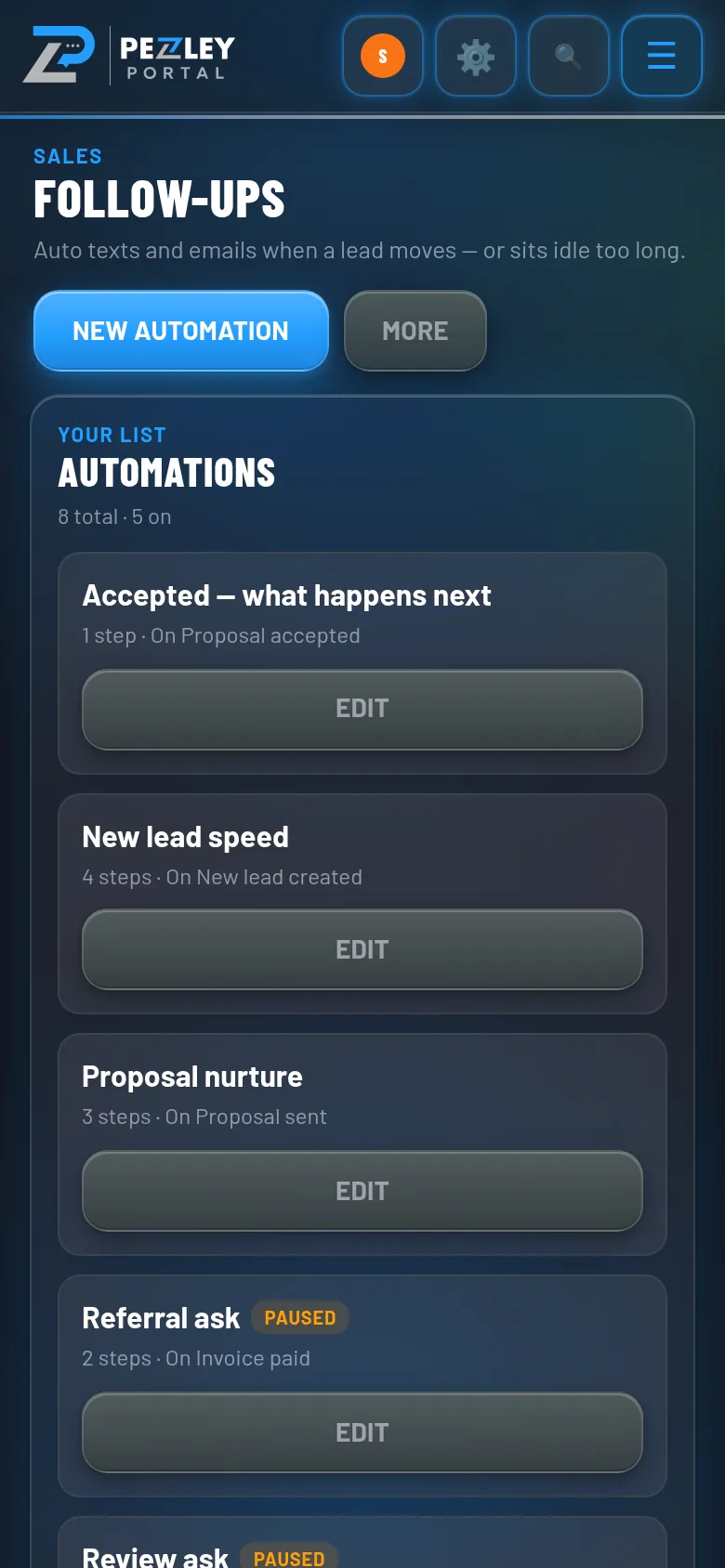
Follow-ups screen listing automatic sequences such as new lead speed, proposal nurture, and referral ask.
Automatic follow-ups

Also in Portal.

Smaller tools your team uses every day.

Estimates and proposals

Build estimates room by room from your own prices, then send a branded proposal your customer can accept online or save as a PDF.

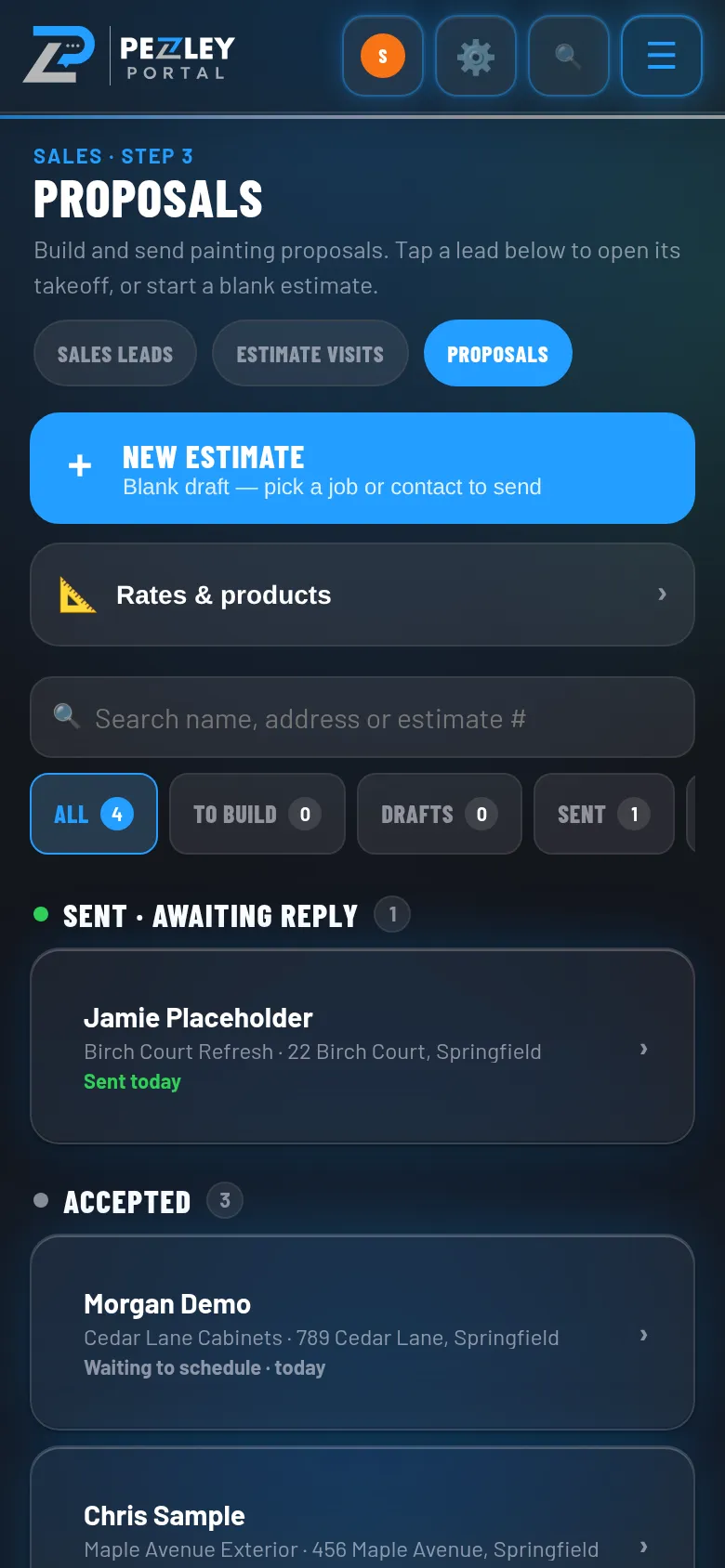
Proposals list with sent and accepted proposals and their totals.

Daily check-ins and photos

Crew leads send a quick update with photos from the job. The office or a lead reviews it and picks what goes on the customer’s page.

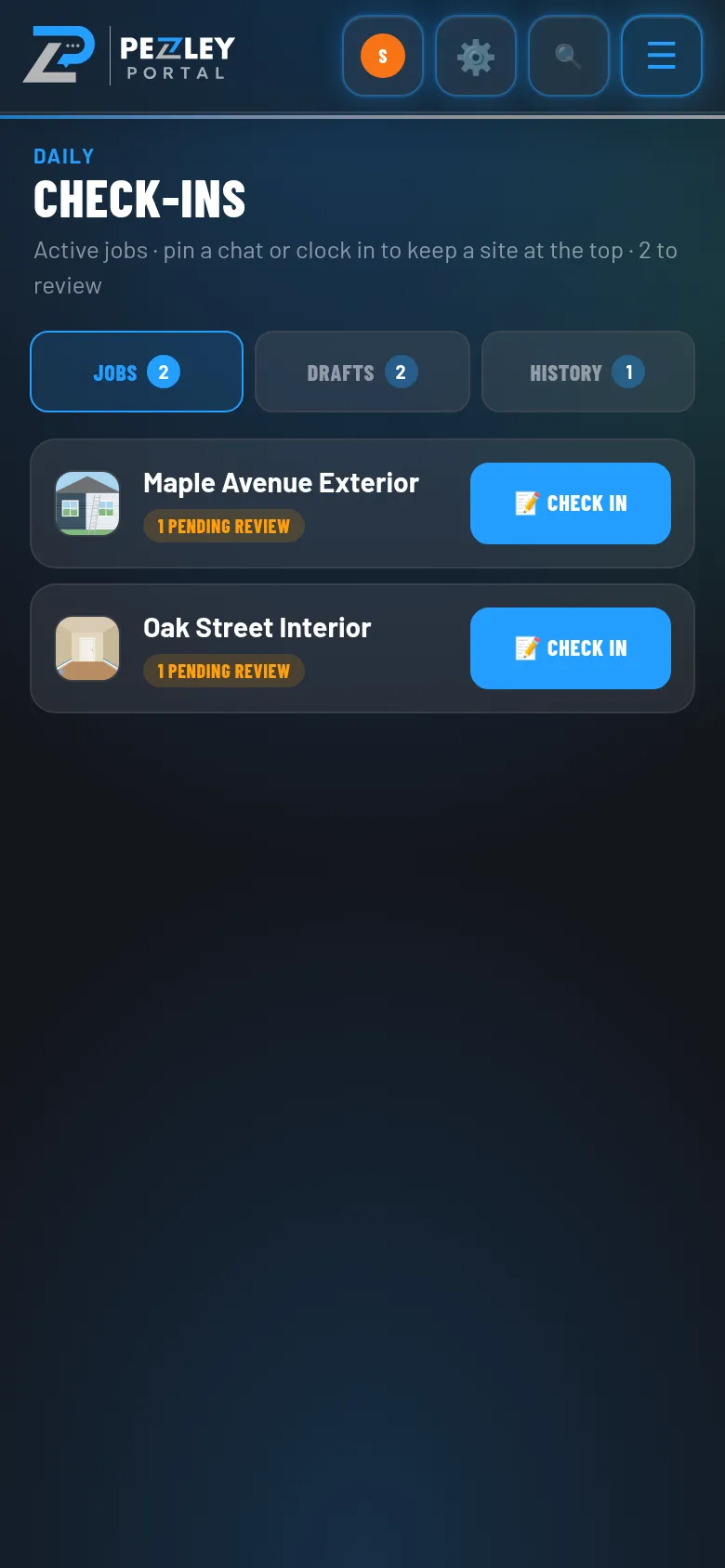
Check-ins screen with two jobs waiting for review.

Mr. Z, the built-in helper

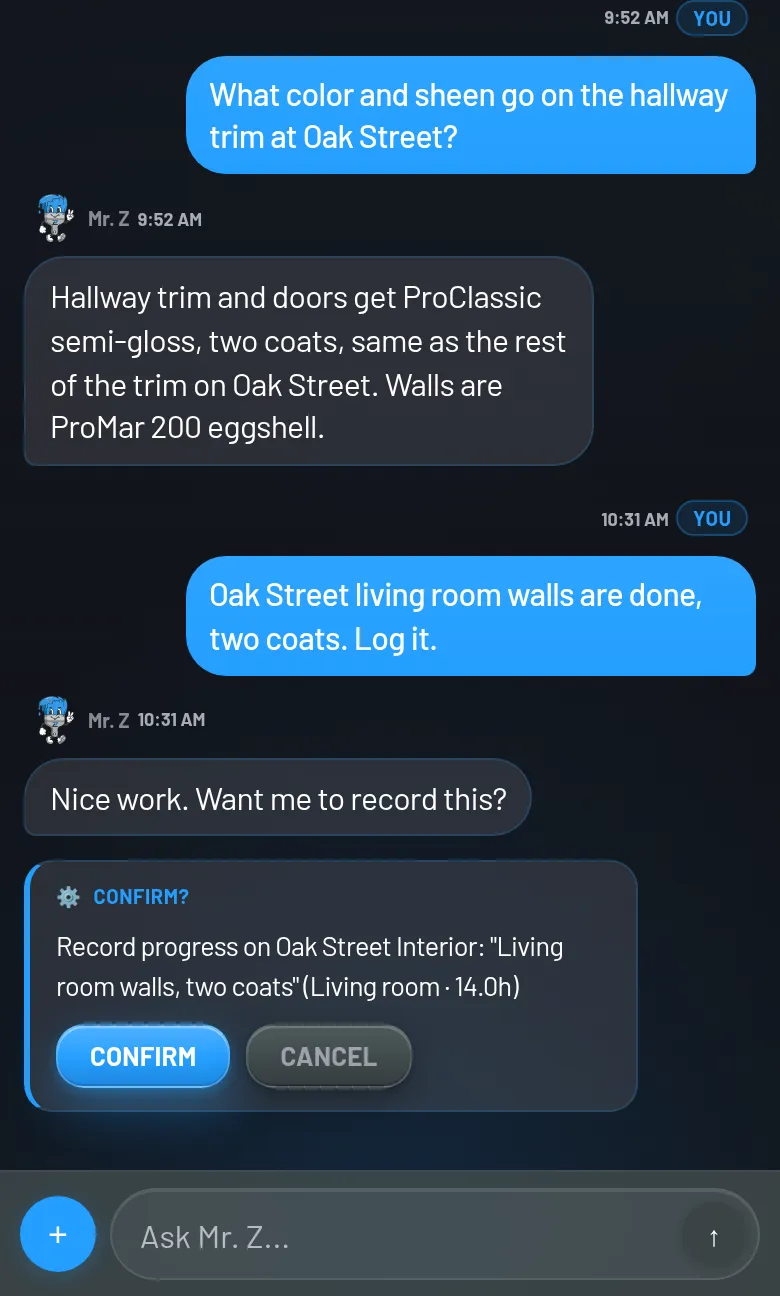
Your crew can ask Mr. Z about their jobs, like colors, scope, or the schedule, and log progress. Anything that changes a job waits for them to tap Confirm.

A crew lead asks Mr. Z about trim paint, then asks it to log progress, and Mr. Z shows a Confirm card first.

Follow one job.
From first call to final profit.

Here’s how a single painting job moves through Portal, and who sees what along the way.

  1. A lead comes in

    The customer and address land in Portal, and the first follow-up goes out on its own.

  2. You write the estimate

    Build it in Portal, or finish it after the visit by talking it through with your AI assistant.

  3. The customer accepts and pays

    They sign on their project page and pay the deposit online.

  4. It goes on the schedule

    Assign a crew and dates. The crew sees the job on their phones.

  5. The crew clocks in

    Each punch is tied to the job, with the GPS location saved.

  6. Check-ins and photos

    The crew lead sends the day’s update with photos for the office.

  7. The customer follows along

    Their page shows progress and the photos you approved.

  8. Hours and profit add up

    Export the hours for payroll and see what the job really made.

One app.
The right view for each person.

Everyone signs in to the same workspace and sees what their job needs. Money and payroll stay with the owner.

Owner & office

  • Send estimates and let follow-ups chase every lead.
  • Schedule crews and move jobs when plans change.
  • Export payroll hours and see the profit on every job.

Crew lead

  • Send the daily check-in with photos and a progress update.
  • Mark up photos with arrows and notes for the office.
  • Fix a missed clock-in and keep the crew on plan.

Crew

  • See the day’s job, the address, and the paint notes.
  • Clock in and out from a phone or the shop screen.
  • Chat with the team and ask Mr. Z a question on the job.

See everything each role can do

Common questions

Quick answers.

Does it work on my phone?

Yes. Portal runs in the web browser on phones, tablets, and computers, and you can add it to your phone’s home screen like an app. Crews do most of their work from their phones.

Which AI assistants work with Portal?

ChatGPT connects with the Pezley Portal connector: paste the key you made in Portal and approve it. Claude and other assistants or automations use the same key with our public API. The setup guide walks through both.

How long does setup take?

It depends on how many people and price-list items you’re bringing over. We set it up with you, and you can start with the tools you need most, like the schedule and time clock, then add the rest when your team is ready.

What does it cost?

Talk to us. We’ll go over pricing for your company during your demo.

Who built it?

Pezley Painting, a working painting company. Portal started as the app we built to run our own estimates, crews, and customers, and we still use it every day.

See it with your own jobs.

Tell us how your company runs today, and we’ll show you where Portal fits.

Request a demo